Install, configure and get started in 5 minutes
- 1Install free from the Play Store
No credit card, no sign-up, no form to fill in. Just download and open.
- 2Test it free for 7 days
Almost every feature unlocked, with no commitment.
- 3Reach out only if you like it
Ask your questions or buy directly from us, whenever you are ready.
- 4Add your license and go live
We send a license code, you paste it into the settings. That is it.
Installation manually or via MDM
TheFlex can be installed in different ways. It is offered both via the Play Store and as an APK file. It can be installed on devices from these sources manually or via MDM.
Note
When you open it for the first time, a permission query appears. TheFlex needs permission to access photos and media on this device. This is necessary because all settings are stored locally in a settings file. This permission is required to write and read this file.
Manual configuration
The first option is to configure the app manually. The first time you start it, a short tutorial opens. This tutorial can be started via the Start now button; it takes a maximum of 30 seconds.
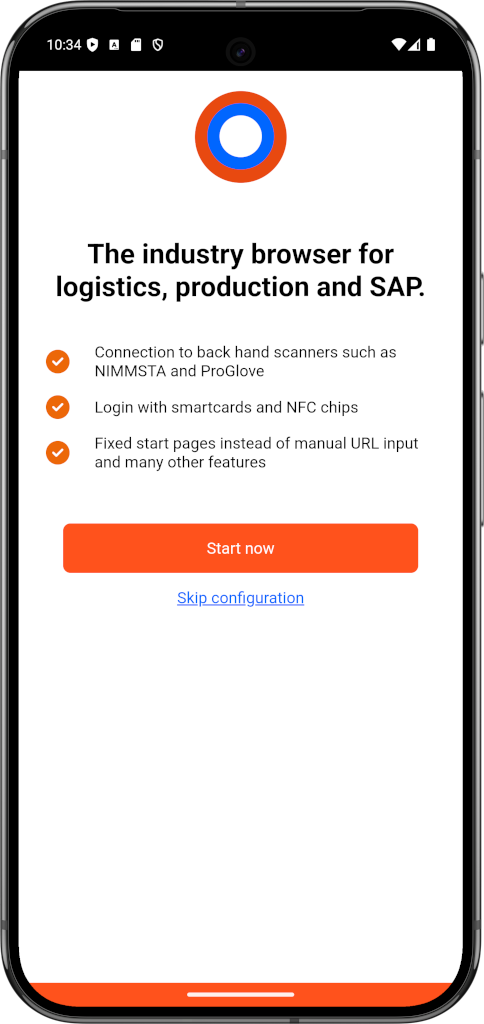
1. Define a start page
One of the most important settings in TheFlex is the start page. Unlike usual browsers, there is no URL input field. Instead, administrators can centrally pre-configure these start pages. Since the device is configured manually in these instructions, you can define the start page yourself. A descriptive name of your choice and the URL can be entered for this purpose.
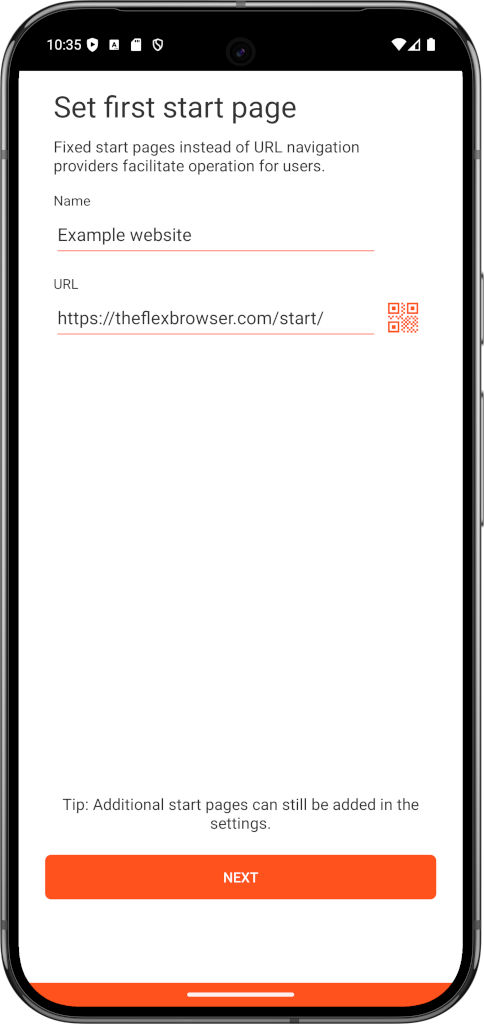
Here is an explanation of the individual input fields:
- Name: Descriptive name of the start page; it is shown to the user.
- URL: The URL of the website or Fiori app to open. Note: The URL can also be scanned using a QR code.
Recommendation
For the first test, it is advisable to enter a URL that you are sure can be reached from the device. This can be the Fiori launchpad or the company intranet if the smartphone is in the company network. Otherwise, any public URL can be used, for example https://www.google.de
Note
After the first start, a demo app can be started via the setting, with which, for example, the behavior of an SAP Fiori app with backhand scanners can be simulated.
2. Start a trial period
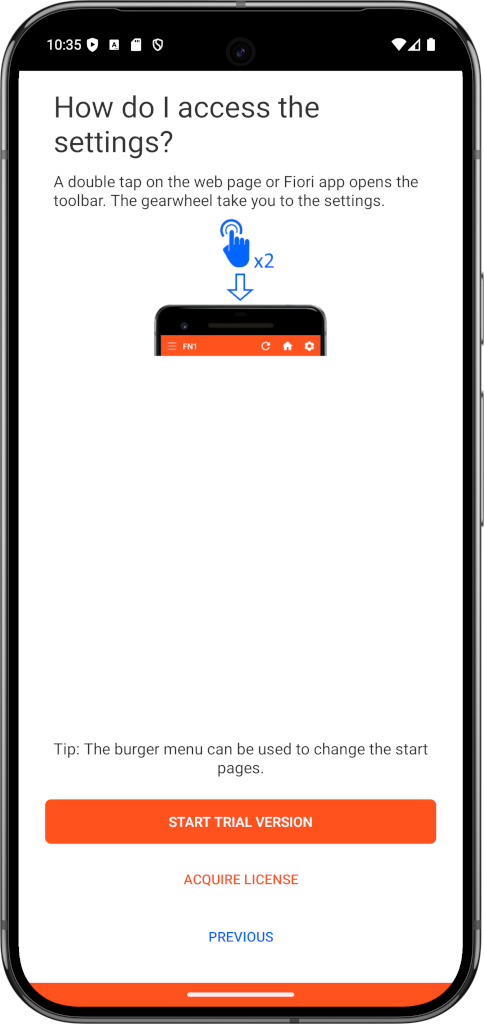
The one-week trial period can now be activated for testing by clicking the Start trial period button. TheFlex can then be used with the previously configured start page.
More information on licensing can be found in the article on licensing.
Detailed descriptions of all features are also described in this documentation under the second section Features.