
Configuration of TheFlex with SOTI MobiControl
SOTI MobiControl lets you push all TheFlex settings centrally to your devices - no manual setup required on each handset. This guide covers the one-time SOTI setup and the recurring task of creating and updating app policies.
Initial setup (one-time)
These steps are only needed once per SOTI environment. If your environment already has an enterprise binding and enrolled devices, skip ahead to Create an app policy.
1. Create Enterprise Binding
In SOTI MobiControl, navigate to Global Settings → Enterprise Bindings → Android tab. Click the plus sign in the Managed Enterprise section to start the Google Managed Enterprise registration. Confirm the dialog and sign in with your Google credentials. After a successful login you will be redirected back to SOTI MobiControl.
2. Enroll devices
Navigate to Configuration → Rules → Android Plus tab and open (or create) an Add Device Rule. Under the Android Management tab, select Managed Google Play Accounts and choose the enterprise binding you just created. Devices enrolled with this rule can receive managed app configurations.
Create an app policy
App policies define which apps are installed on devices and how they are configured. Create one policy per device group or configuration profile you need.
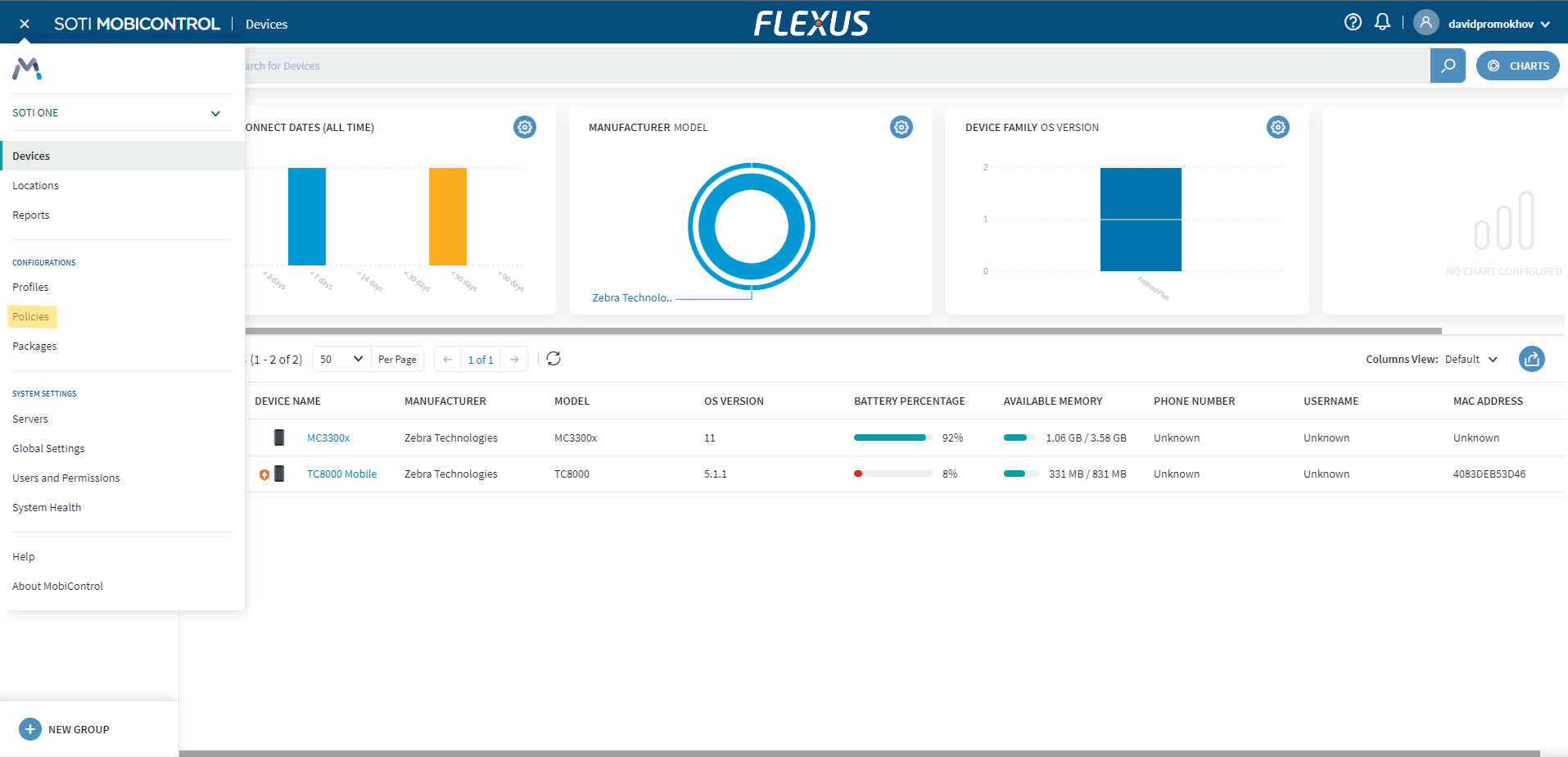
- Navigate to App Policies in the SOTI MobiControl menu.
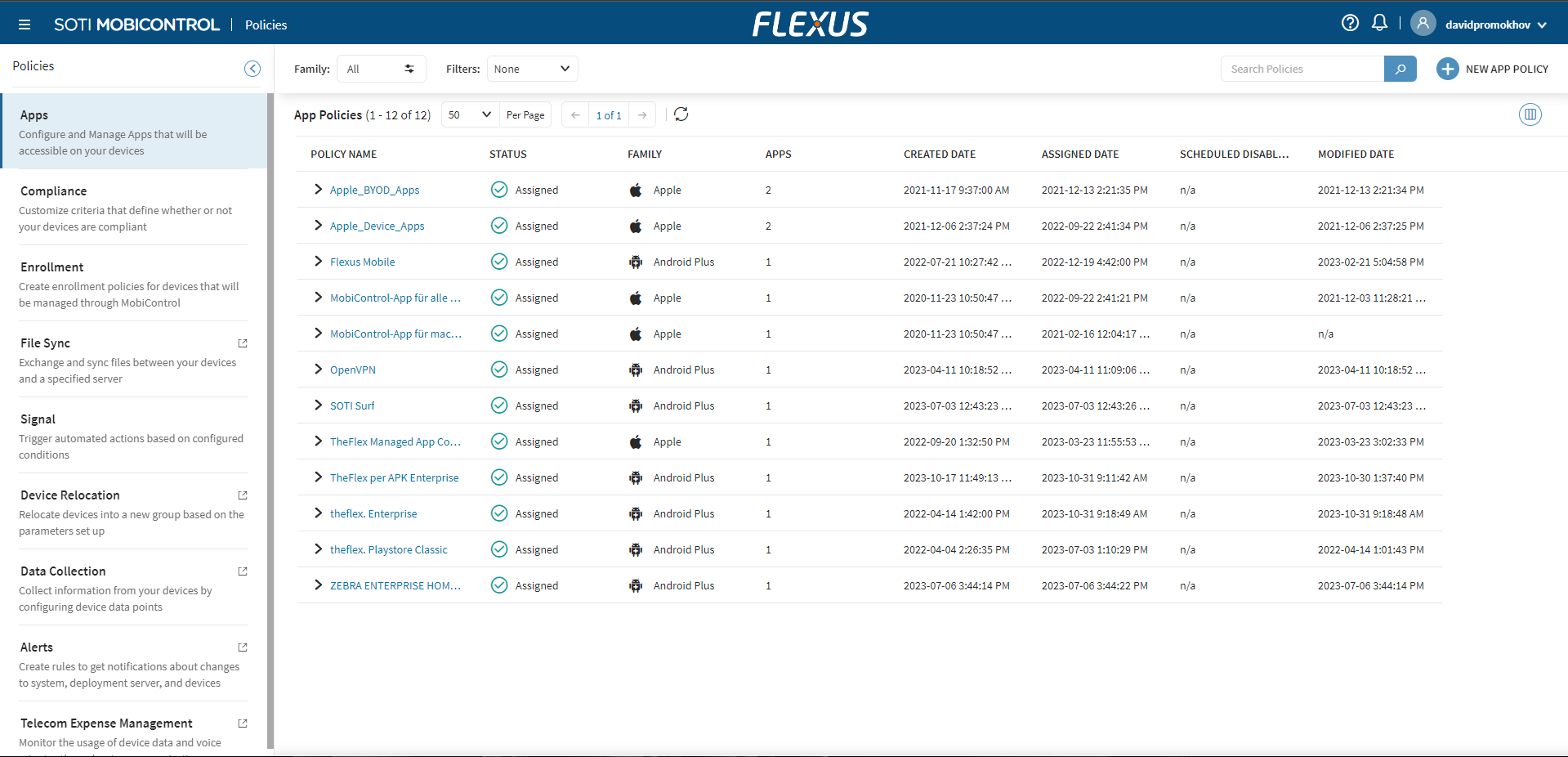
- Click New app policy in the upper right corner.
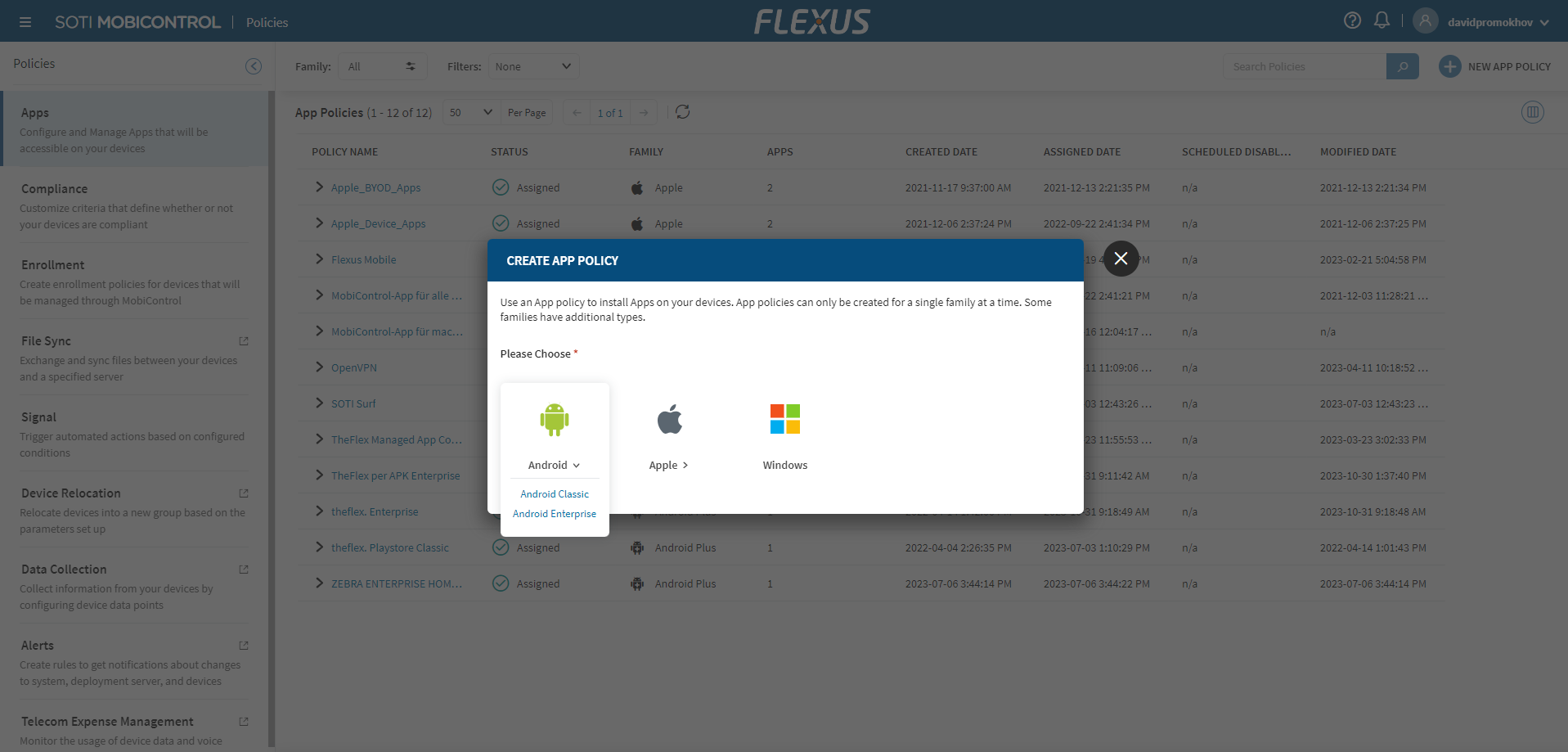
- Select Android Enterprise and enter a name and description (e.g. "TheFlex - Warehouse").
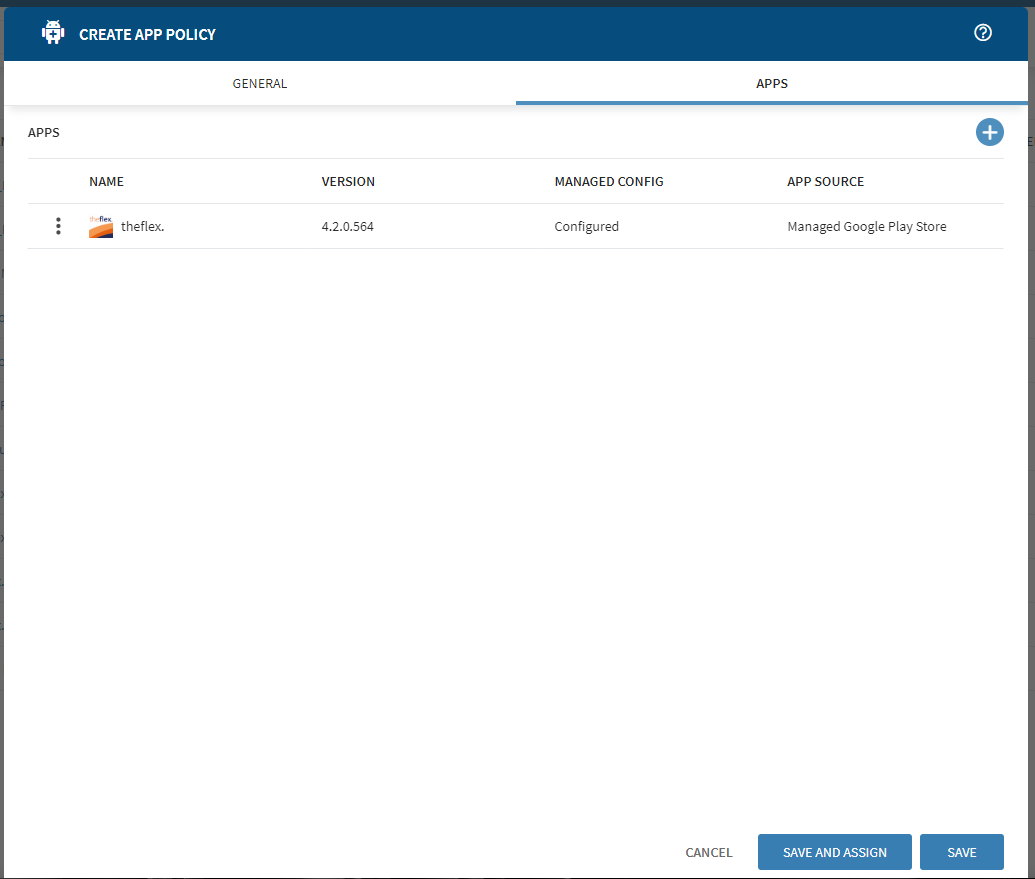
Switch to the Apps tab. Select Managed Google Play as the app source and choose your enterprise binding.
Click Managed Google Play, search for TheFlex, and click Approve to add the app to the policy.
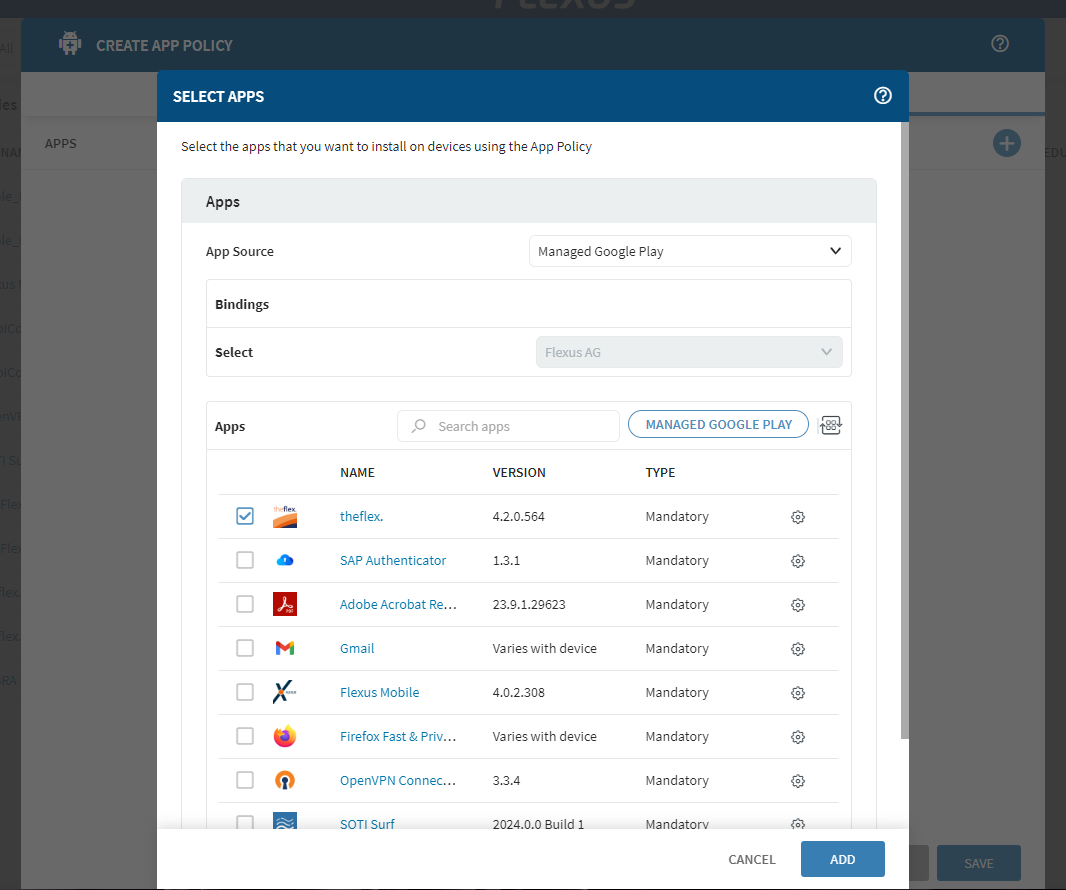
- Make sure the checkbox next to the TheFlex icon is selected, then click the gear wheel to open the TheFlex configuration.
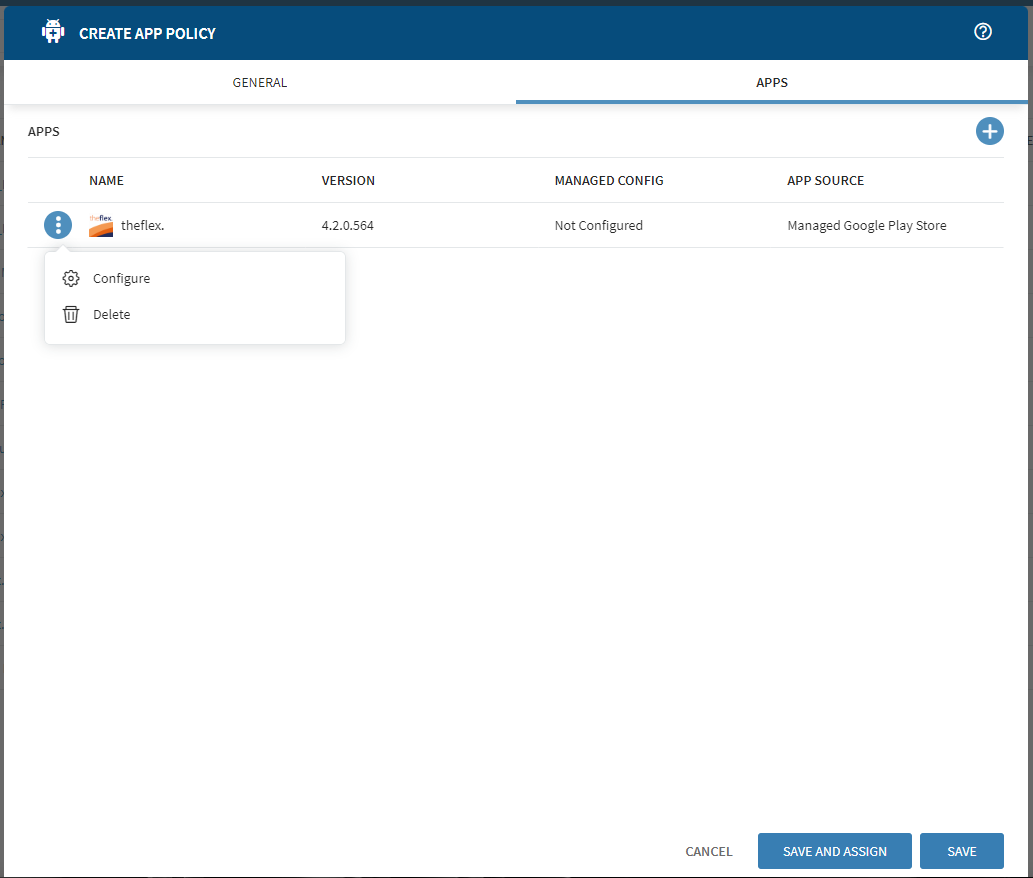
Configure TheFlex settings
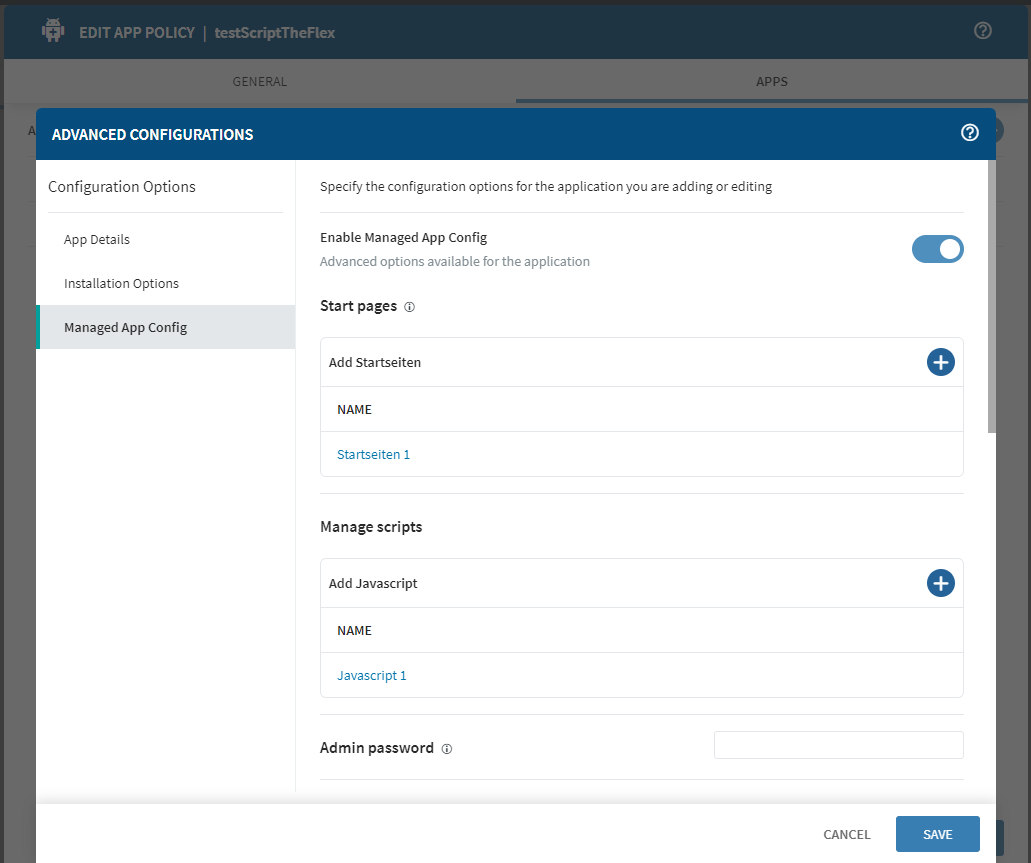
The configuration screen shows all available TheFlex settings as individual input fields.
WARNING
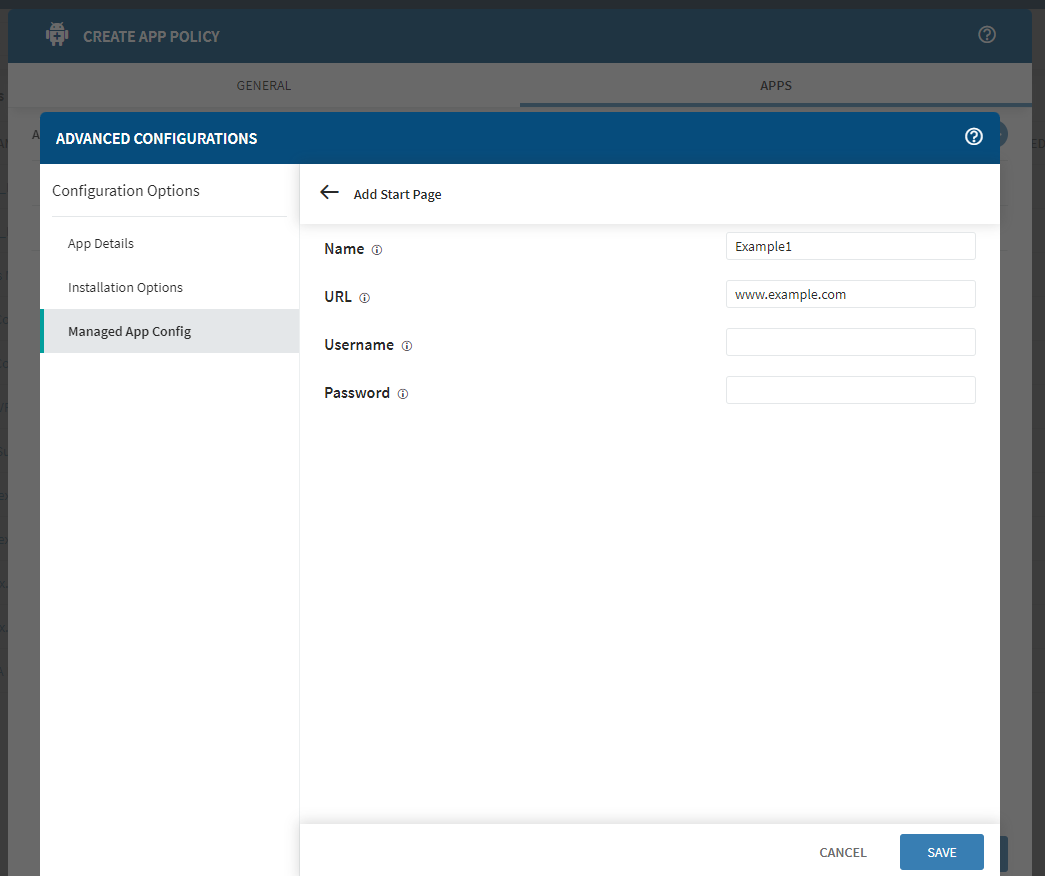
At least one start page with a name and URL must be configured. Without it, TheFlex will reject the configuration as invalid and fall back to its defaults.
The field names in this screen correspond directly to the keys in the Intune configuration reference. Valid values are identical - only the input method differs (UI fields in SOTI vs. JSON in Intune). Refer to that reference for a full list of all available settings.
Common settings at a glance
| Field | Notes |
|---|---|
fioriURLName / fioriURL | Name and URL of a start page (required) |
fioriURLUsername / fioriURLPassword | Enter "/" to keep the value the user has saved locally on the device |
menuStartpagesEnabled | Activates folder-based menu navigation instead of the flat list |
menuStartpageFolder | Folder path for a menu start page entry - see below |
Menu start page folder paths
When using menu start pages, the Folder field (menuStartpageFolder) controls where each entry appears in the navigation menu. Use "/" as a separator to create nested subfolders:
| Value | Position in the menu |
|---|---|
| (empty) | Root level - directly in the menu, not inside any folder |
Warehouse | Inside folder Warehouse |
Warehouse/Zone A | Inside subfolder Zone A, which is inside Warehouse |
Entries with identical paths are grouped into the same folder automatically. Folders are created implicitly - they do not need to be defined separately.
Custom scripts
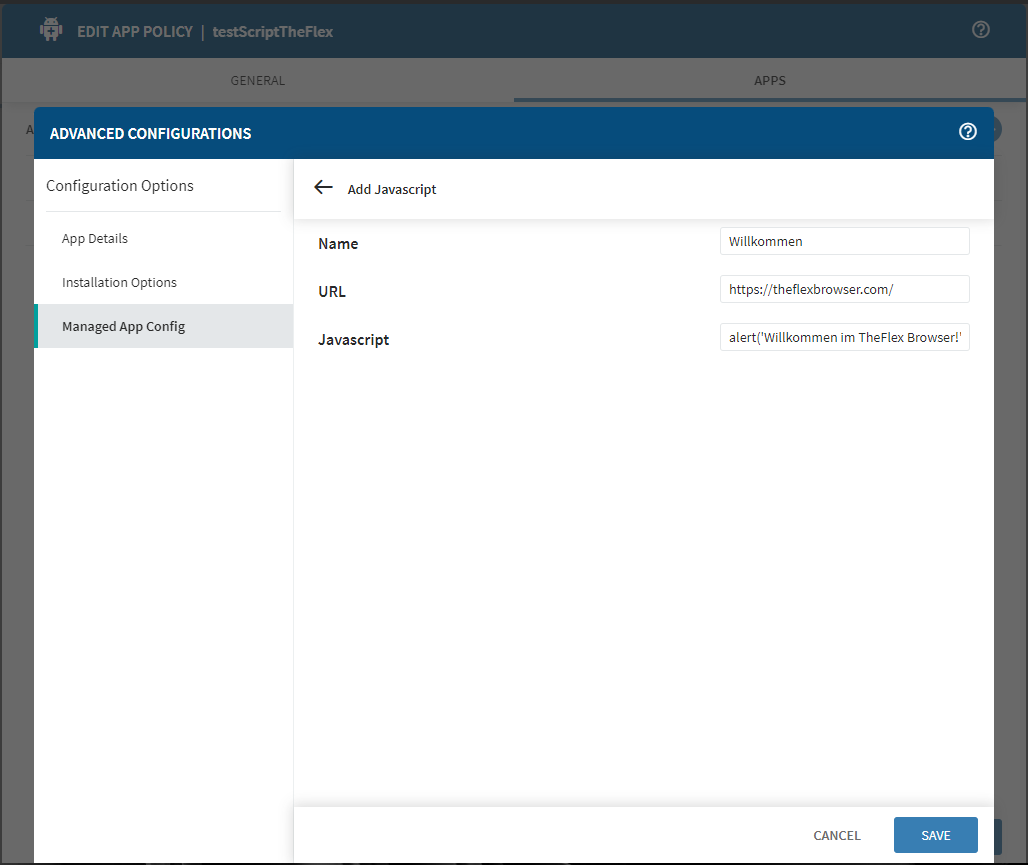
Use the custom script section to inject JavaScript into specific web pages. Each entry has a name, a URL pattern (e.g. https://my-system.com*), and the script code. The script runs on every page load for URLs matching the pattern.
Save, assign, and sync
- Save the app policy and assign it to the relevant device groups.
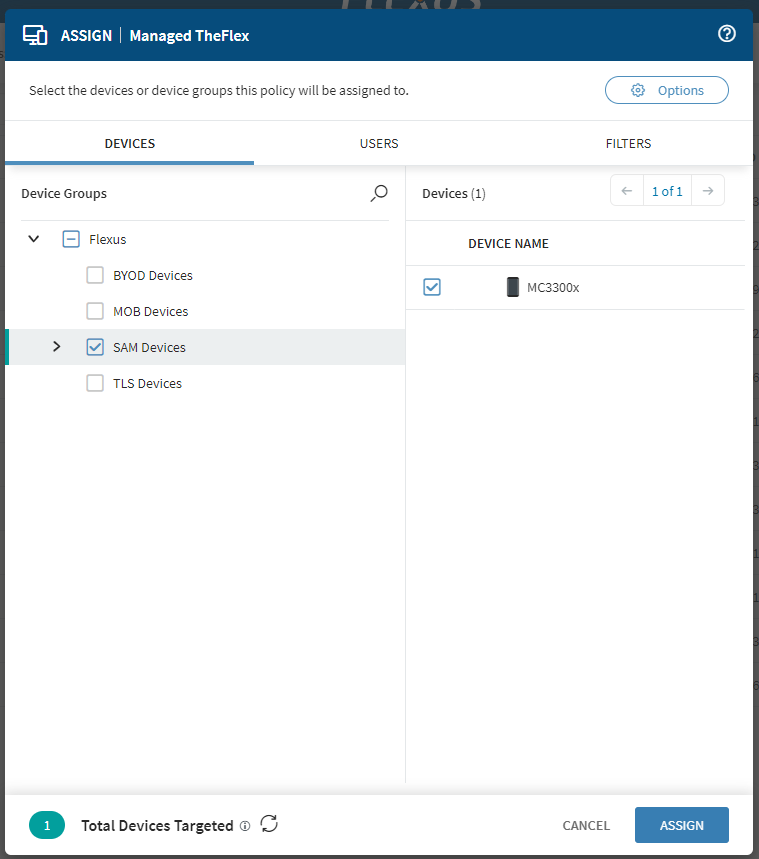
- To push the configuration to a device immediately without waiting for the next automatic sync, perform a Check-in for that device.
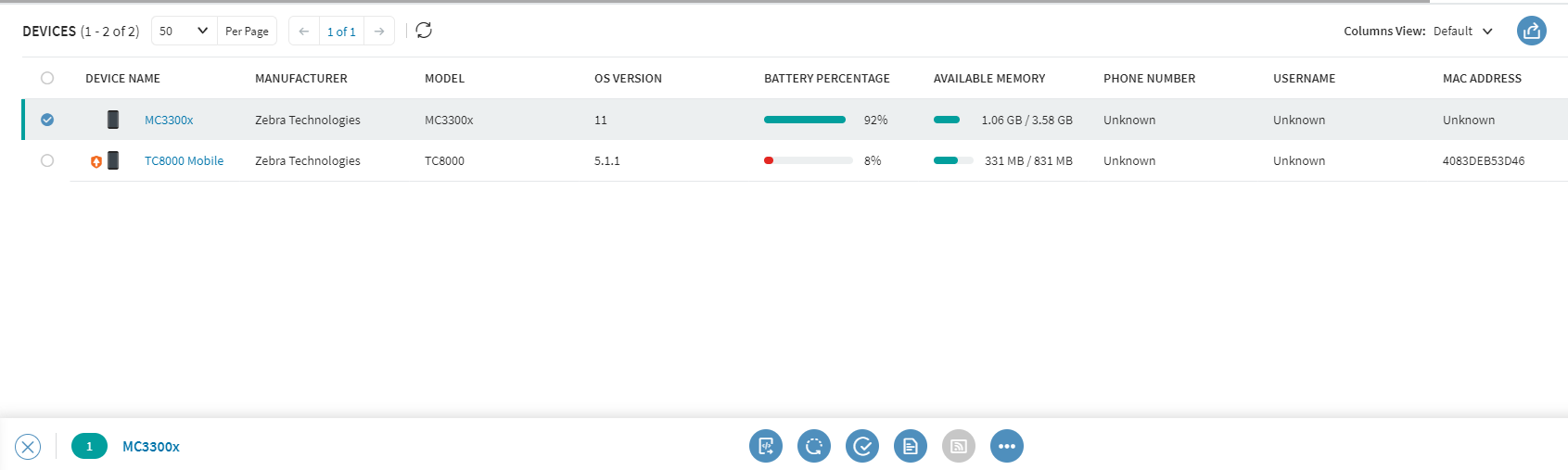
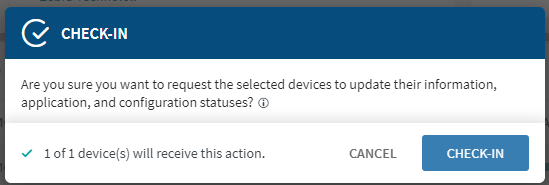
Once the check-in completes, TheFlex will receive and apply the new configuration. You can verify the deployment status under Devices and confirm that all profiles, packages, and app policies are applied correctly.
WARNING
If TheFlex was already installed and configured locally on a device (e.g. for testing), the settings must be reset before the MDM configuration takes effect. This can be done in the TheFlex settings or in the general Android settings.
Managed App Config via file
For Android devices prior to version 10, the configuration can be distributed via a file instead of through the Managed App Config channel. Contact us for instructions - this is only relevant for outdated devices.