
Adjust page zoom
Page zoom scales the entire content of the displayed website - text, images, and layout. It is especially useful when a web application was designed for desktop screens and appears too small on a mobile device.
Setting
The page zoom is configured under Settings → User interface → Page zoom.
The value is a percentage. 100% is the default (no scaling). Higher values make content appear larger, lower values make it smaller.
Example
The following screenshots show the TheFlex website at different zoom levels:
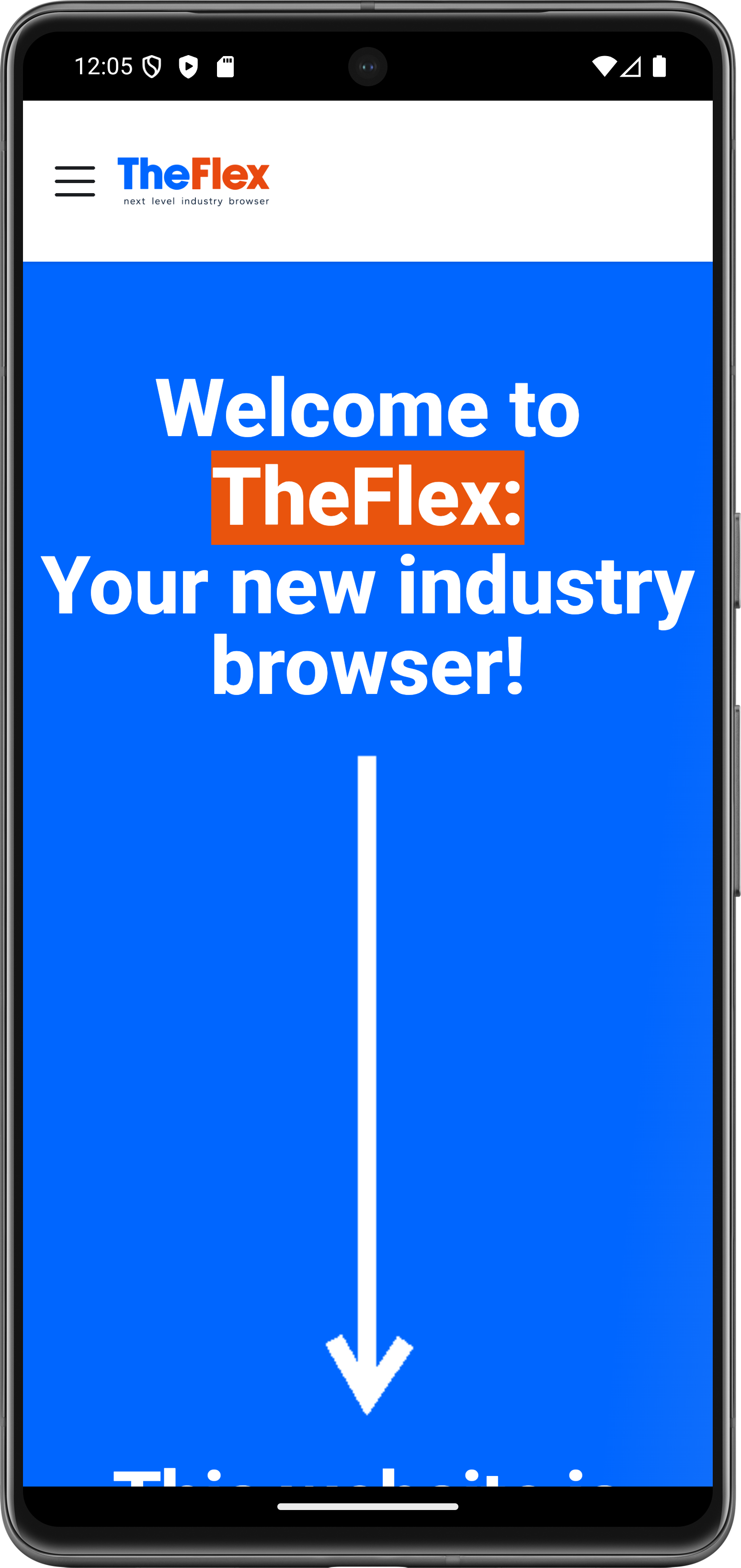
100% zoom - default view

130% zoom - content is larger and easier to read and tap
When to use this
- Text too small - websites designed for desktop screens often use font sizes that are too small for mobile display
- SAP applications - legacy SAP screens can render with incorrect scaling on newer high-resolution devices
- Inconsistent display across devices - when a newer device renders an application differently than older devices, adjusting the zoom can restore the expected appearance
Recommendation
Only adjust the zoom if the website does not fit the screen correctly. Mobile-optimized web apps generally do not need this setting.